Pixel Art · 3 min read
Pixel Art Converter Settings Explained: Grid, Palette, and Dithering
See what each setting changes and when a simpler conversion produces a cleaner picture. This pixel art converter guide focuses on decisions you can verify while you work, so the final chart is not only attractive on screen but practical to make.
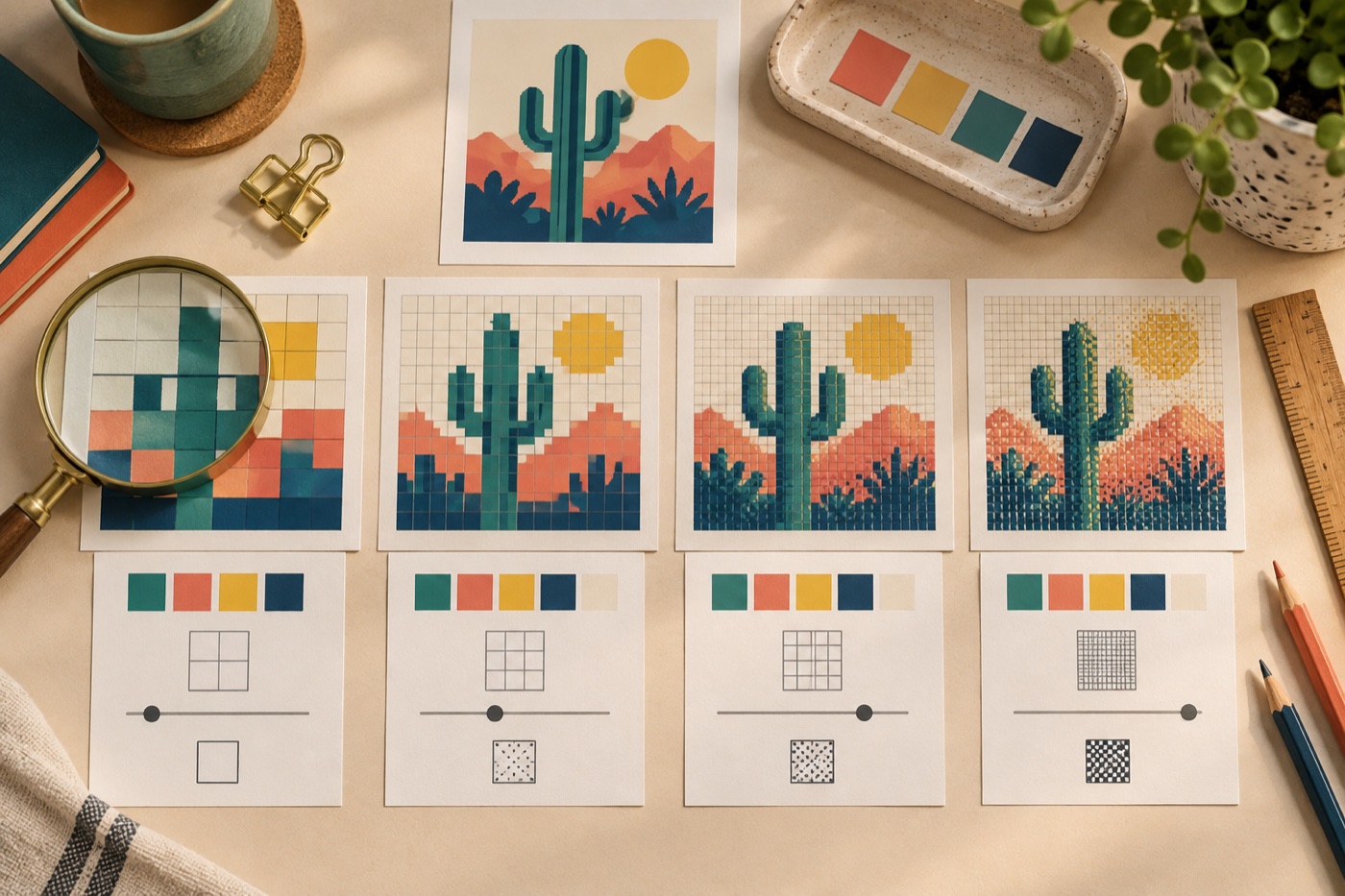
Grid width changes the workload
Set the crop first, then adjust grid width. A wider grid preserves more facial features and diagonals, but it also creates more cells to check and place. If both width and height double at the same aspect ratio, the chart has roughly four times as many cells. Compare a narrow and a wider preview at intended display size; choose the smallest one that keeps the subject recognizable. Resizing after you have manually fixed individual pixels may move those edits, so settle dimensions before detailed cleanup.
Maximum colors is a ceiling
The palette setting limits how many colors conversion may use; it does not guarantee that every allowed color will appear. Lower it until large regions become coherent, then increase it only when a key detail disappears. Watch for two near-identical colors scattered through the same region. Those colors may be expensive to sort in beadwork even when they look pleasant on screen. If you plan a physical project, compare the chosen shades with the materials in hand instead of assuming a digital palette equals a manufacturer’s catalog.
Brightness, contrast, and saturation differ
Brightness shifts the overall lightness; contrast increases or reduces separation between light and dark; saturation changes how vivid colors appear. Move one control at a time and return it to zero before testing another. A dark pet on a dark sofa may benefit from a modest contrast adjustment before conversion, while a washed-out picture may need a different crop or light source rather than extreme saturation. Judge the converted grid after each change, since the best-looking source photograph is not always the easiest pattern to read.
Try dithering only after the basics
Dithering scatters available colors to imitate shades that are missing from a limited palette. Compare it on and off without changing width, crop, or color limit. It can make a large sky less banded while turning a small logo into noise. Inspect both the thumbnail and the individual cells. Keep it if the smoother tone is worth extra material changes; otherwise turn it off and redraw a few key transitions by hand. Save the settings used for the winning version so a later export does not have to be guessed from memory.
A reproducible settings test
For each setting you adjust, duplicate the current version first. Note the crop, grid width, color maximum, dithering state, and the brightness or contrast change. Compare two versions at the same physical display size. If the second version improves the subject, keep the new value; if it only makes the preview more dramatic while adding noise, revert it. This controlled method prevents several simultaneous slider changes from obscuring which adjustment actually helped.
Continue with BeadArtify
Open the free pattern maker to test your image, continue in the full pattern designer, or browse the original community gallery for color and scale ideas. Your source image is processed locally in the browser.