Pixel Art · 12 min read
How to Turn a Picture Into Pixel Art Without Losing the Subject
A practical workflow for choosing dimensions, reducing colors, and cleaning a photo-based grid. This how to turn a picture into pixel art guide focuses on decisions you can verify while you work, so the final chart is not only attractive on screen but practical to make.
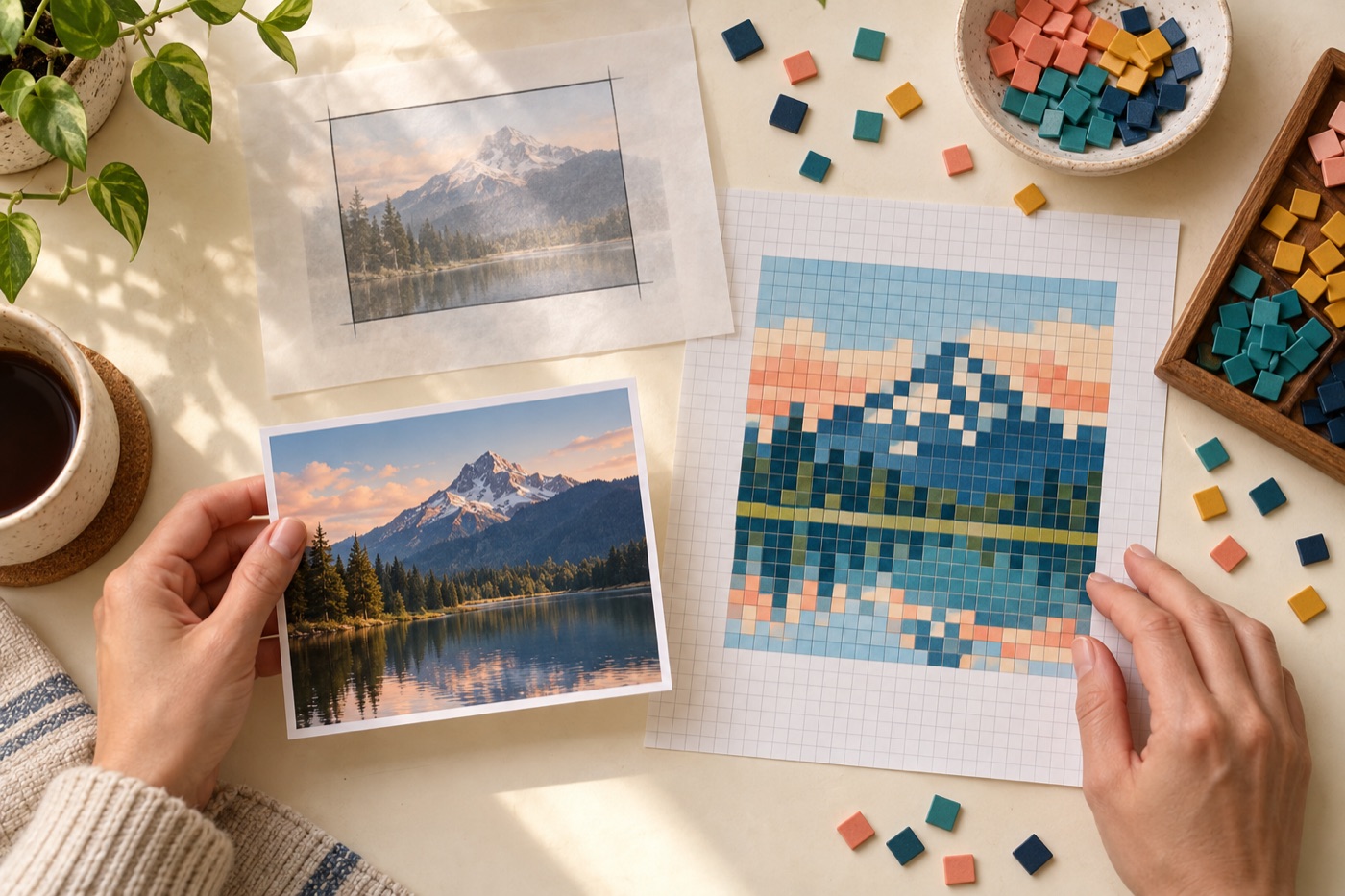
Start with the finished object, not the software
A strong how to turn a picture into pixel art workflow begins with a physical result in mind. Decide where the project will live, who will use it, and how large it may be before selecting a grid. A tiny magnet, a wearable cuff, and a wall mosaic can start from the same photograph yet need completely different simplification. Write down the maximum width, the materials you already own, and the viewing distance. These limits are helpful: they tell you which details deserve space and which details can be removed without weakening the subject.
What to verify before moving on
Zoom out to the normal viewing distance, compare the result with your physical size target, and keep only the detail that improves recognition. Save a version before making a large edit so you can compare both choices.
Choose a source image that survives simplification
Look for a clear outline, one dominant subject, and lighting that separates the subject from the background. Side-by-side colors should differ in value as well as hue. Busy backgrounds, soft shadows, transparent hair, and dozens of tiny reflections may look beautiful in a photograph but create scattered cells in a pattern. Crop early and closely. If the subject still reads when the image is viewed as a thumbnail, it is a promising source for a how to turn a picture into pixel art.
Set dimensions before choosing colors
Resolution controls both recognizable detail and workload. Double the width and you create roughly four times as many cells, so a small change can transform the time and material cost. Start at the smallest size that shows the main silhouette. Check the finished measurement using the pitch of your bead, stitch, drill, or block. If a face, letter, or narrow feature disappears, increase the grid gradually rather than jumping to the largest setting. Practical dimensions beat impressive on-screen detail.
Reduce the palette with purpose
Automatic conversion often uses more shades than a maker needs. Begin with a restrained maximum and inspect the large color regions. Each additional color should clarify form, depth, or an important edge. Two nearly identical shades scattered across the design add sorting work without improving the picture. Merge them into the more available color. Preserve the strongest dark, the main midtone, and one or two highlights before adding subtle transitions.
Understand color matching limits
A display emits light while craft materials reflect it. Finish, texture, room lighting, and neighboring colors all change perception. A nearest digital match is therefore a useful starting point, not a promise of identical appearance. Compare physical samples in daylight when accuracy matters. Keep material sizes and finishes compatible, especially when combining translucent, metallic, matte, and opaque pieces. Record substitutions so the material list remains useful during assembly.
Use dithering only when it helps
Dithering alternates nearby colors to suggest a tone that is not present in the palette. It can add softness to large photographic gradients, but it also increases color changes and creates a noisy surface. Turn it off for bold icons, lettering, small wearable patterns, and most yarn charts. If you enable it, zoom out to normal viewing distance and check whether it creates meaningful shading. Remove isolated specks that do not contribute to a visible transition.
Clean edges and clusters by hand
Treat the automatic result as a draft. First fix the outer silhouette, then simplify internal shapes. A useful pixel or bead cluster connects to its neighbors and supports a curve, corner, shadow, or texture. Single cells deserve suspicion unless they represent a deliberate sparkle or small feature. Use consistent step patterns along diagonal edges. Compare the edited grid with the source, but judge the grid as its own artwork rather than chasing every photographic detail.
Check the material count against your stock
Counts should come directly from filled cells. Sort requirements by color and add a sensible allowance for spills, breakage, and later edits. The allowance depends on the craft and project size; it should be visible as an estimate rather than hidden inside the base count. If one shade is short, test a substitution on a small section before changing the entire pattern. Updating the grid after a substitution keeps the legend and shopping list accurate.
Divide large work into calm sections
Large patterns become manageable when divided into boards, rows, or numbered regions. Mark boundaries without hiding the underlying cells. Work in a consistent direction and verify the completed section before moving on. A progress view is more reliable than memory, especially when two colors are similar. For printed pages, include coordinates and a small overlap or clear boundary label so adjacent sections cannot be reversed.
Test a small sample
A sample exposes problems that a monitor cannot show: material spacing, color shift, tension, melting behavior, glare, and the real scale of details. Build a representative area containing an edge, a highlight, and at least one color transition. Photograph it from the expected viewing distance. If the subject reads and the surface feels manageable, continue. If not, revise the palette or dimensions before investing in the full project.
Export a pattern you can use away from the screen
A practical export needs more than a pretty preview. Include a visible grid, dimensions, orientation, color identifiers, quantities, and page or board boundaries. Symbols help when several colors look alike in grayscale printing. Save an editable project copy separately from the printable file so future corrections do not require starting again. Name files with the craft, size, and version; this small habit prevents confusion when you test several resolutions.
Finish, review, and share responsibly
After assembly, compare the object with the pattern and note any substitutions or fragile sections. Craft-specific finishing matters: even pressure and heat for fuse beads, balanced tension for woven work, secure thread paths for beadwork, and careful blocking for yarn projects. Share an original photo with accurate material notes and credit collaborators. Avoid uploading copyrighted characters or another maker’s pattern as your own. A useful gallery entry helps the next maker understand what worked.
A repeatable checklist
Before committing, confirm the crop, physical size, grid dimensions, palette, material compatibility, base quantities, allowance, orientation, and export scale. Inspect the silhouette at normal viewing distance and scan for isolated cells. Prepare colors in the order you will use them, keep the legend visible, and save an editable copy. This repeatable sequence turns how to turn a picture into pixel art from a one-click novelty into a dependable planning method that supports a real finished object.
Continue with BeadArtify
Open the free pattern maker to test your image, continue in the full pattern designer, or browse the original community gallery for color and scale ideas. Your source image is processed locally in the browser.