Pixel Art · 3 min read
Image to Pixel Art: Color Reduction That Keeps Important Detail
Learn why fewer purposeful colors usually produce a stronger, easier-to-edit result. This image to pixel art guide focuses on decisions you can verify while you work, so the final chart is not only attractive on screen but practical to make.
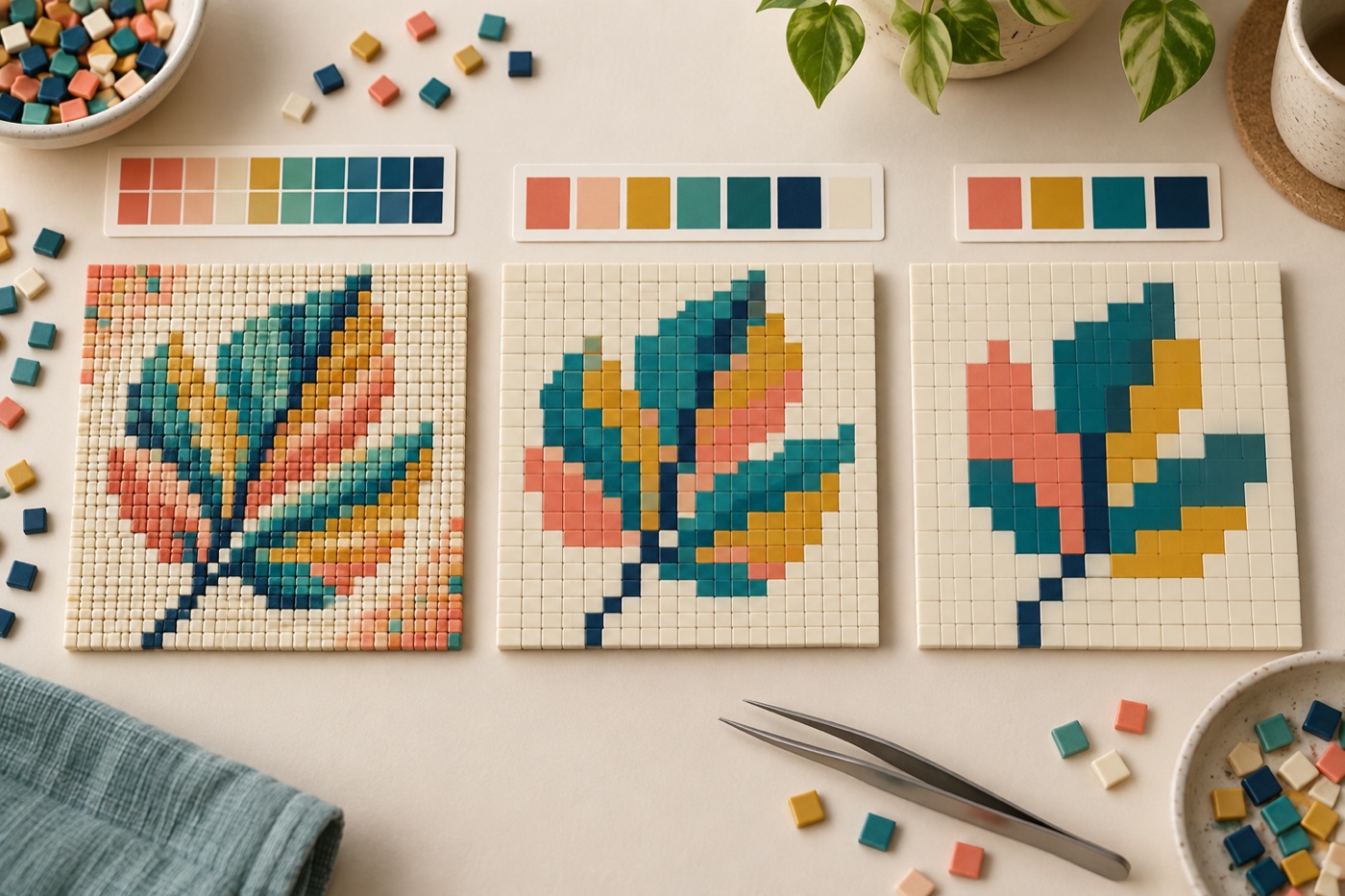
Sort colors by visual job
Instead of asking for the maximum possible number of shades, list what each color must do. An outline needs a dark value, the subject needs a main fill, a highlight explains form, and a contrasting background keeps the silhouette readable. Start with those jobs, then add a shade only when two neighboring forms merge without it. A good reduced image can use fewer colors than the original while retaining the same focal point. Count the final palette, but judge it by clarity rather than by hitting a fixed number.
Protect boundaries during merging
Automatic reduction groups colors by numerical similarity, yet a tiny dark pixel at the tip of an eye may matter more than a large soft gradient in the sky. Compare the reduced image with the original at thumbnail size and mark the essential boundaries. If two important neighboring areas receive one color, restore separation by changing one area’s value or drawing a simple outline. If an unimportant shadow becomes a new shade, merge it away. This manual pass is especially useful for portraits, lettering, and small icons.
Treat dithering as a texture choice
Dithering mixes existing palette colors in a patterned or scattered arrangement to suggest an in-between tone. Try it on a broad gradient, then examine the same area cell by cell. If the change makes a sunset smoother without hiding the horizon, it may help. If it puts alternating colors inside a tiny face or letter, turn it off or limit it to the background. A physical craft version may require switching materials every few cells, so judge the benefit against the extra placement work.
Compare two controlled versions
Keep the crop and grid dimensions fixed while testing a compact palette against a larger one. Otherwise a changed crop or resolution can disguise the effect of color reduction. Look at both versions from normal viewing distance and ask whether the additional shades create a clearer silhouette, more readable expression, or useful depth. If they only add scattered cells, keep the simpler result. Save the palette choice and the reasons for your manual corrections; this lets you recreate the result if a later edit or export changes the image.
Avoid a misleading improvement
A larger palette can look more photographic at full zoom while reading worse as a tiny icon. Never judge the conversion only on a large monitor. Place two exports at the same pixel size beside each other and view them without zooming. Look first at the outer contour, then at one important interior landmark. If both survive equally well, the lower-color version has a practical advantage for editing, counting, and physical construction.
Continue with BeadArtify
Open the free pattern maker to test your image, continue in the full pattern designer, or browse the original community gallery for color and scale ideas. Your source image is processed locally in the browser.