Pixel Art · 3 min read
Photo to Pixel Art Cleanup: Fix Noise, Edges, and Isolated Pixels
Turn a rough automatic conversion into intentional artwork with a focused editing pass. This photo to pixel art guide focuses on decisions you can verify while you work, so the final chart is not only attractive on screen but practical to make.
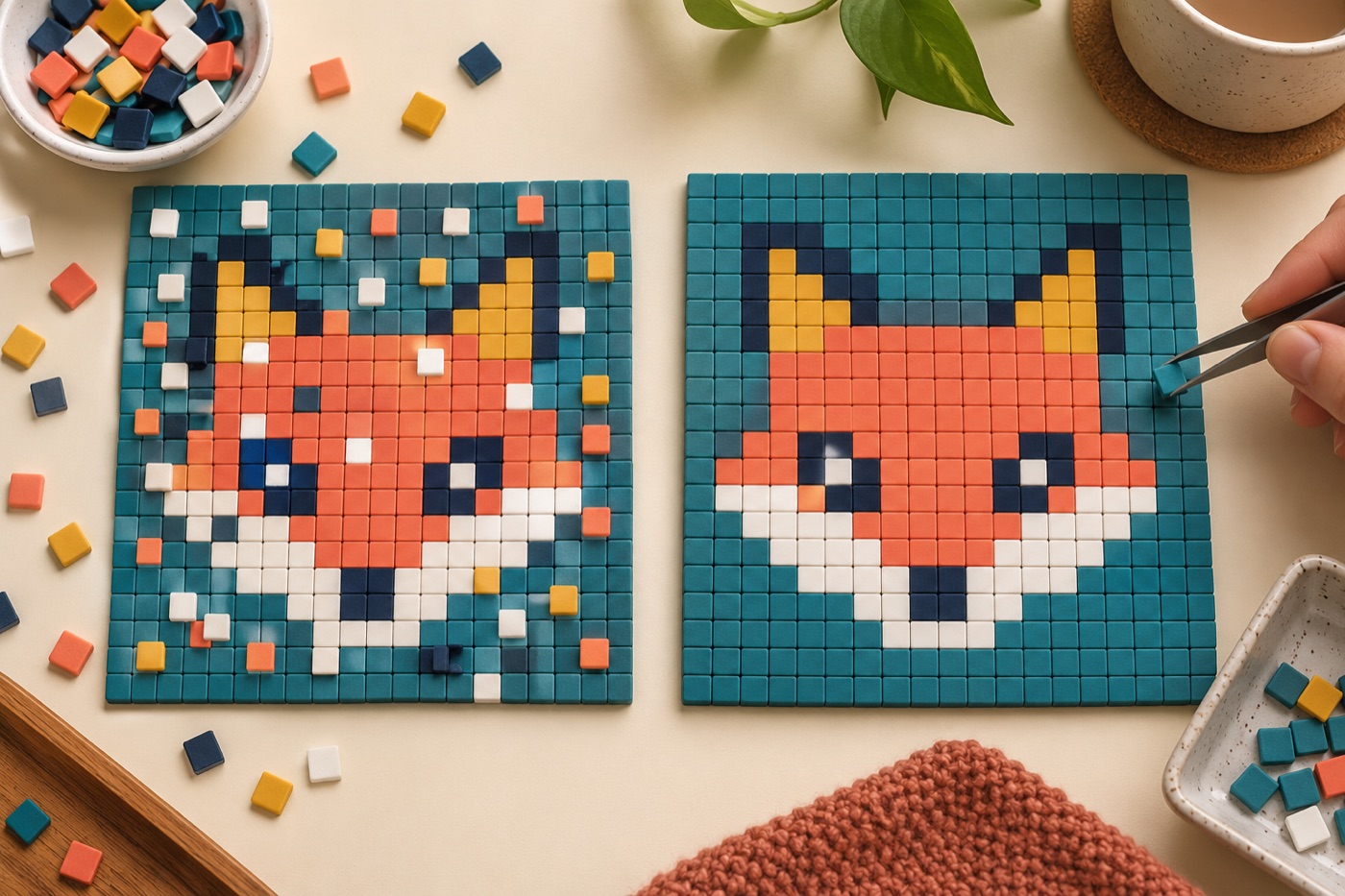
Diagnose the noise before erasing
Look at the conversion at its native grid size, then zoom in only to locate the problem. A scattered single-pixel dot in a flat sky is probably conversion noise; the same dot in an eye may carry the expression. Circle the three most important features of the subject and protect them during cleanup. Switch the preview between color and grayscale to see whether adjacent regions still separate when hue is removed. Remove distraction in large quiet areas first, where every speck is conspicuous.
Repair a broken outline
Follow the edge around the subject one cell at a time. Join small gaps that make a limb, letter or container appear disconnected, but avoid making every contour uniformly thick. At diagonal turns, alternate short horizontal and vertical steps rather than adding a lone corner pixel that touches only diagonally. If an outline grows too heavy, delete one cell from the inside edge and recheck at normal size. Keep a copy of the conversion before these manual changes so you can compare the silhouette.
Merge tiny color islands
Sort the colors by how much area they occupy. For each tiny island, ask whether it shows texture, a highlight, or merely a quantization accident. Replace accidental islands with the nearest surrounding region while keeping deliberate focal highlights. This often reduces the material list without flattening the image. Avoid a blanket filter that wipes out all small clusters: small clusters can be exactly what makes a face, text label or reflection readable.
Control checkerboard dithering
Dithering uses neighboring colors to suggest a shade that is not in the palette. At low resolution, its alternating pixels may resemble noise rather than shading. Compare a dithered and undithered version at the final output size. Keep dithering in broad backgrounds if it improves the transition, but repaint the subject's outline and key details into cleaner clusters. If the art will be made with beads or stitches, scattered alternation also increases color-switching work.
Finish with a reduction test
Reduce the final preview to the actual size at which people will see or share it. Ask a second person to identify the subject without seeing the source photograph. If they struggle, adding more tiny details may not help; strengthen the darkest edge or simplify the surrounding background. Export at an integer scale so the pixels stay sharp, and keep the editable grid as your master. Compare the final version with the original conversion to ensure cleanup preserved the intended expression.
Continue with BeadArtify
Open the free pattern maker to test your image, continue in the full pattern designer, or browse the original community gallery for color and scale ideas. Your source image is processed locally in the browser.