Pixel Art · 3 min read
Convert a Photo to Pixel Art: Which Photos Work Best?
Pick source images with the lighting, silhouette, and contrast needed for small-grid clarity. This convert photo to pixel art guide focuses on decisions you can verify while you work, so the final chart is not only attractive on screen but practical to make.
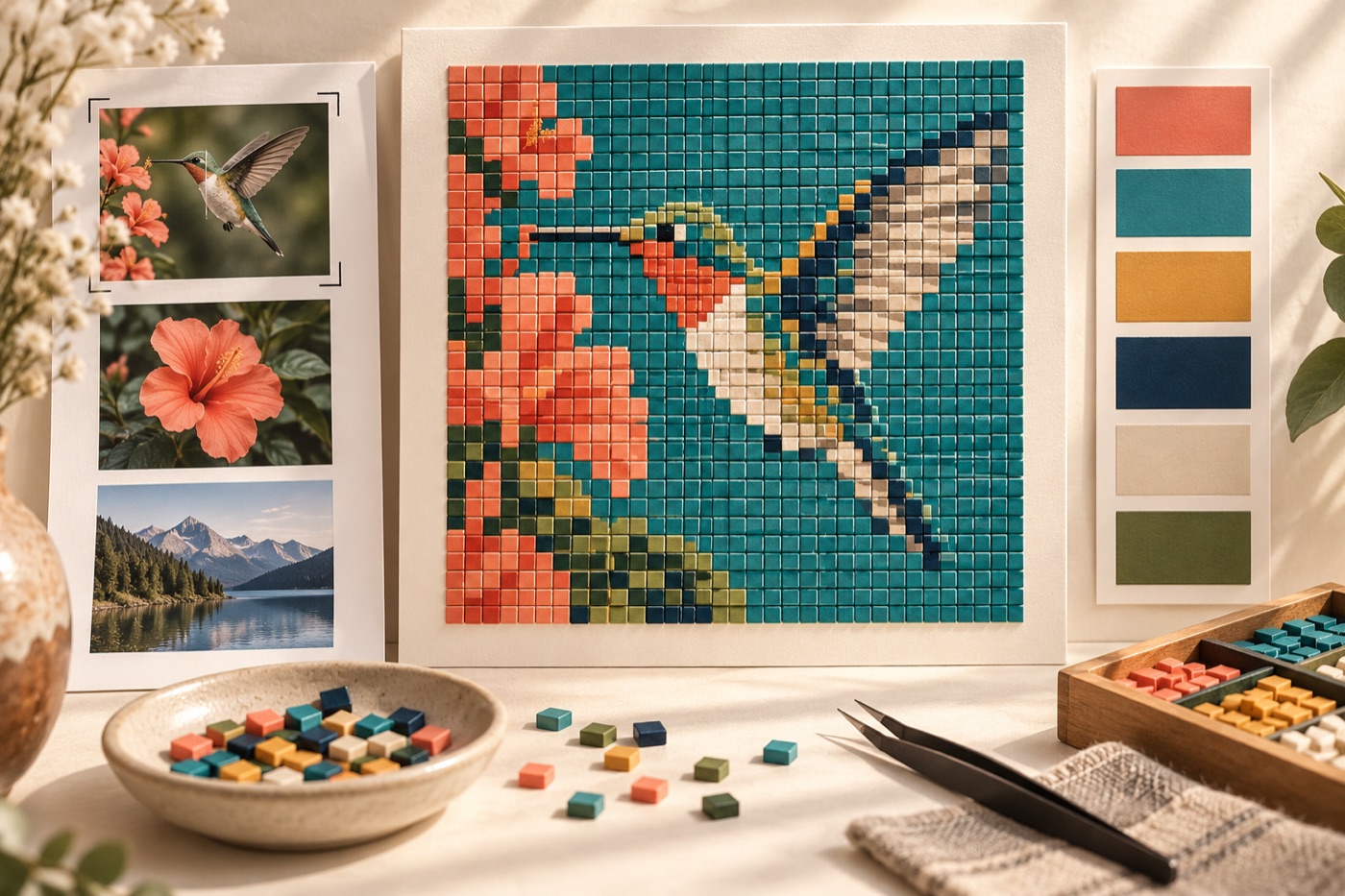
Choose contrast over megapixels
A high-resolution photograph is not automatically a good small-grid source. Look for a strong outline and clear separation between the subject and the background. A pet against a similar-colored sofa will usually convert less clearly than the same pet beside a bright wall. Squint at a thumbnail before uploading: if the subject disappears, pick a different crop or photo. Large, readable shapes matter more than small camera detail once the grid is reduced.
Watch for photographic traps
Hair, grass, glitter, shiny fabric and soft shadows contain many tiny variations. At a narrow grid width, those variations can turn into scattered colors. Choose a photo with a calm background, then crop out unimportant objects. If the lighting blows out a white face or hides a dark eye, try another exposure rather than expecting the converter to invent missing information. Photographs with a single subject and clear light direction are usually easier to edit than busy group scenes.
Test three crops
Create a close crop around the subject, a medium crop with some context, and a wide crop. Convert all three at the same grid width and color limit. Compare recognition first, not visual richness. The close crop may preserve eyes but lose the pose; the wide crop may keep the setting but reduce the face to a few cells. Choose the middle point that communicates the subject's identity. Keep the source photo privately so you can repeat the crop if you change your mind.
Match the crop to the output
A square avatar, a tall bookmark and a wide scene need different compositions even when they show the same photo. Decide the final aspect ratio before conversion, and leave space around a subject only when that empty area contributes to the picture. Check any text, hands or fine silhouette points at actual output size; those features are often the first to fail. If a feature matters, enlarge the grid or simplify its shape by hand rather than forcing more palette colors into too few cells.
Use the photograph as a reference
An automatic result is a draft. Clean the largest color regions, correct the outline, and keep only highlights that explain form. Compare the edited pattern with the original at normal viewing size, then stop: more pixels are not automatically more faithful. Save both the source crop and the editable result, with permission to use the photo if you plan to publish. A useful pattern should be recognizable in its intended medium, not merely impressive while zoomed in.
Continue with BeadArtify
Open the free pattern maker to test your image, continue in the full pattern designer, or browse the original community gallery for color and scale ideas. Your source image is processed locally in the browser.