Block Art · 3 min read
Minecraft Pixel Art Generator: Plan a Buildable Block Mosaic
Convert an image into clear block regions and organize a large build into manageable sections. This minecraft pixel art generator guide focuses on decisions you can verify while you work, so the final chart is not only attractive on screen but practical to make.
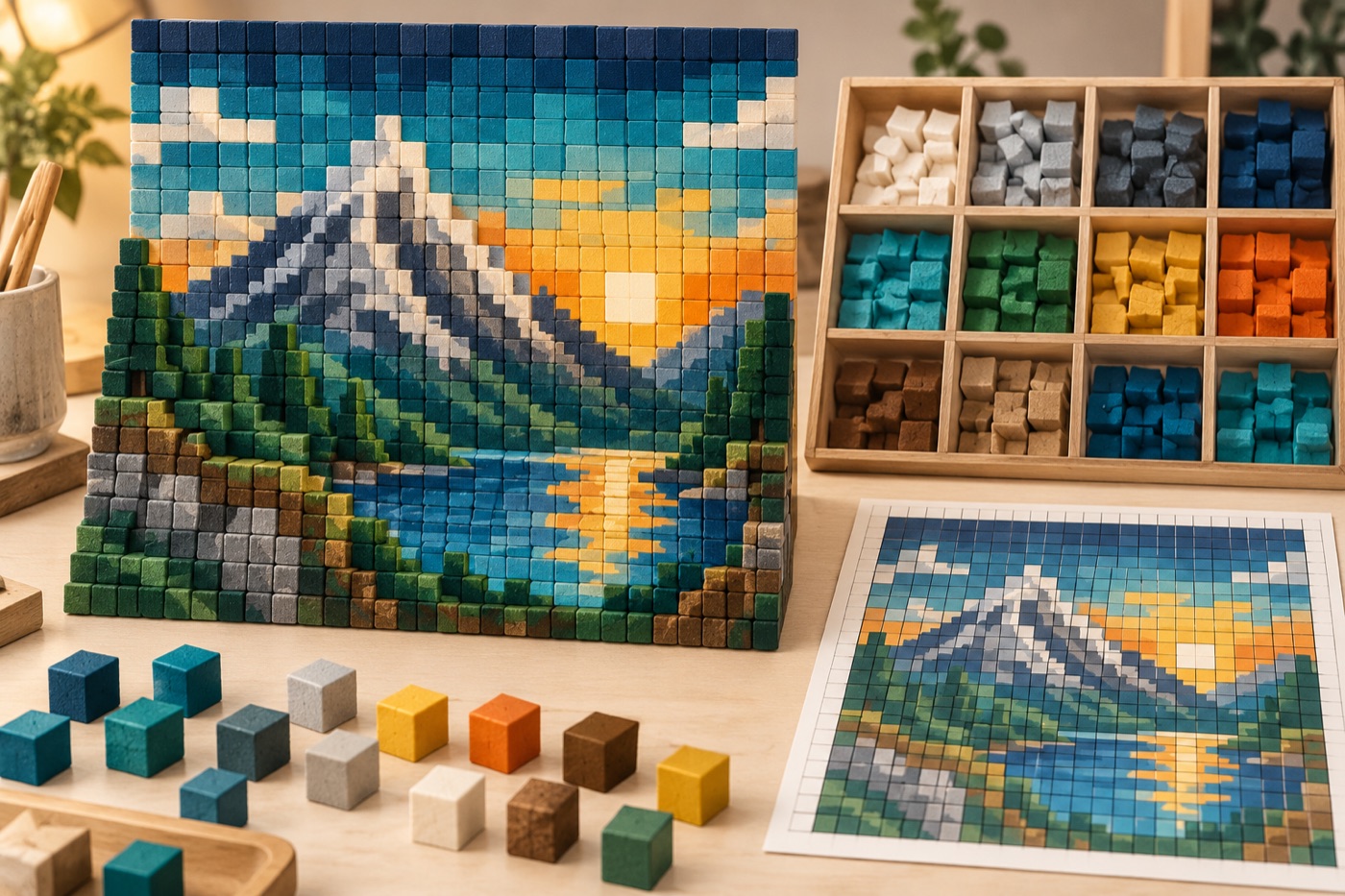
Choose the plane before drawing
A wall mosaic and a floor mosaic have different viewing conditions. For a wall, walk back to the distance at which other players will see it; if the face or symbol stops reading, simplify the source image before adding detail. Decide which direction is up, mark the top-left corner on your chart, and reserve a flat work area large enough for the full width. A transparent background on a converter preview does not mean an empty area is safe to ignore: check what blocks or scenery will be behind those pixels in the world.
Turn pixels into buildable regions
Treat one chart cell as one block only after confirming the intended scale. Draw horizontal and vertical section lines at convenient intervals, then number them so a friend can build a different section without guessing its origin. Replace isolated one-block flecks with the surrounding color when they do not define an edge; this reduces the chance of leaving a hole during construction. Keep the original image beside the chart, but follow the numbered grid for placement rather than eyeballing the picture.
Test block faces, not color swatches
Many blocks look different from their top and side faces. Before committing to a palette, place a small in-game strip using the exact face that will be visible in the finished mosaic. Check it in the lighting and biome you plan to use. A highly textured block can look like a useful average color in a picker yet create visual noise in a large flat area. Substitute one block at a time and recheck the main silhouette from normal viewing distance.
Build in sections and keep a count
Count every filled chart cell by block type, then add a small allowance for placement errors and any supports the design needs. Store the colors in separate labeled containers or shulker boxes. Mark each completed section on a copy of the chart; otherwise, a repeated row can shift the whole image. If the mosaic is suspended, plan a safe building platform and access to its far edge before placing the first decorative block. Take a screenshot from the intended viewpoint after each major section.
Review the actual world
The last check is visual rather than numerical. Stand where a viewer will stand, turn off distracting overlays, and compare the constructed art with the chart. One mistaken block in a facial feature or letter can matter more than several errors in a background area. Correct those high-value details first. Keep the final palette and dimensions with your world notes so the piece can be repaired later without reverse-engineering your screenshot.
Continue with BeadArtify
Open the free pattern maker to test your image, continue in the full pattern designer, or browse the original community gallery for color and scale ideas. Your source image is processed locally in the browser.