Brick Mosaic · 3 min read
LEGO Mosaic Maker Planning: Color, Baseplates, and Piece Counts
Create a buildable mosaic with available colors, sensible dimensions, and a parts list. This lego mosaic maker guide focuses on decisions you can verify while you work, so the final chart is not only attractive on screen but practical to make.
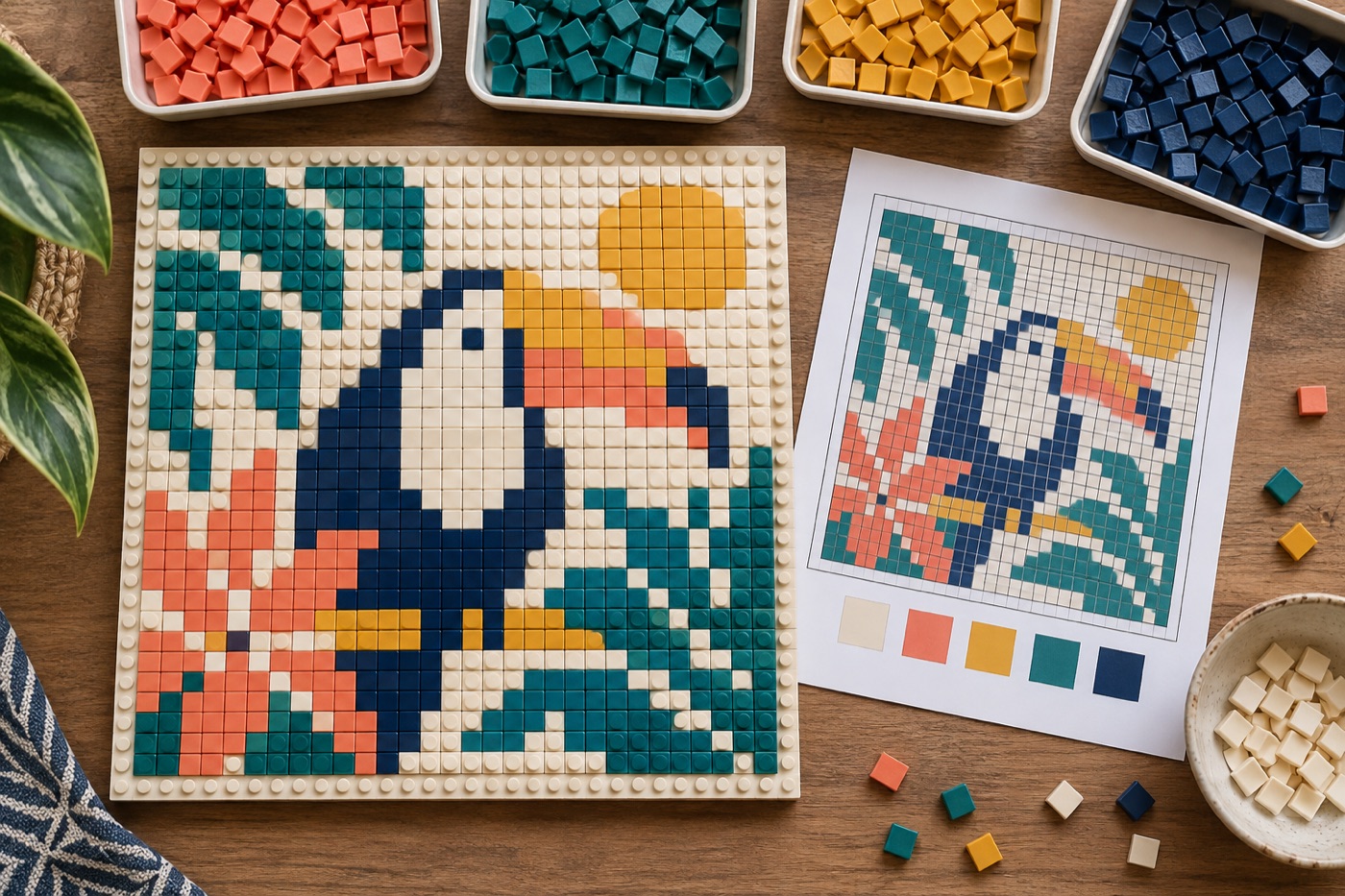
Map the image to studs and supports
A mosaic grid becomes a build only when its cell dimensions fit the plates or mounting surface you own. Count the studs available across and down, then choose a crop that places the subject inside those limits. If you use several support plates, draw their boundaries over a copy of the chart and check whether a vital one-stud eye or letter crosses a seam. Choose a construction approach and piece type before counting anything: a round tile, square tile, and plate can give different coverage and texture.
Reduce colors to purchasable parts
Computer-picked RGB shades do not guarantee that matching LEGO elements exist in the exact type and quantity you need. Build a palette from parts you already own or can source, then reassign unavailable shades. Compare colors in ordinary light, especially adjacent dark blues, grays, and browns. Check the mosaic at its intended viewing distance; broad contrast can matter more than small photographic gradients. Keep a separate mapping of digital preview color to actual element and color so a later edit does not silently change the parts list.
Count by piece type as well as color
A cell count alone is not a shopping list if the design mixes elements. Record each combination of color, shape, and size. If a solid region can be built with larger pieces, that may change the count and placement plan; confirm that the new pieces still fit the support and do not cover an important edge. For each base section, make a small pile or tray of its required parts. This avoids discovering halfway through the last plate that the correct color exists only in the wrong shape.
Test a corner before the full build
Assemble a small area that includes the background, outline, and a diagonal. Verify that the support feels stable, parts align as expected, and the subject reads when viewed from a few steps away. Review the physical result before committing to thousands of placements. Save a labeled chart for each support section, with orientation arrows and the verified parts list. A digital pattern is a useful map; the test build confirms that the exact elements in hand can realize it.
Keep a buildable inventory
Group the list by actual part identity rather than by approximate image color. Mark a color as unavailable if you cannot source it in the required piece and quantity, then revise the chart before buying anything else. For a multi-plate build, store the counts and orientation for each plate. A photo of a completed test panel beside its digital chart reveals whether the chosen parts reproduce the expected contrast, texture, and scale.
Continue with BeadArtify
Open the free pattern maker to test your image, continue in the full pattern designer, or browse the original community gallery for color and scale ideas. Your source image is processed locally in the browser.